AI Coding on iPad
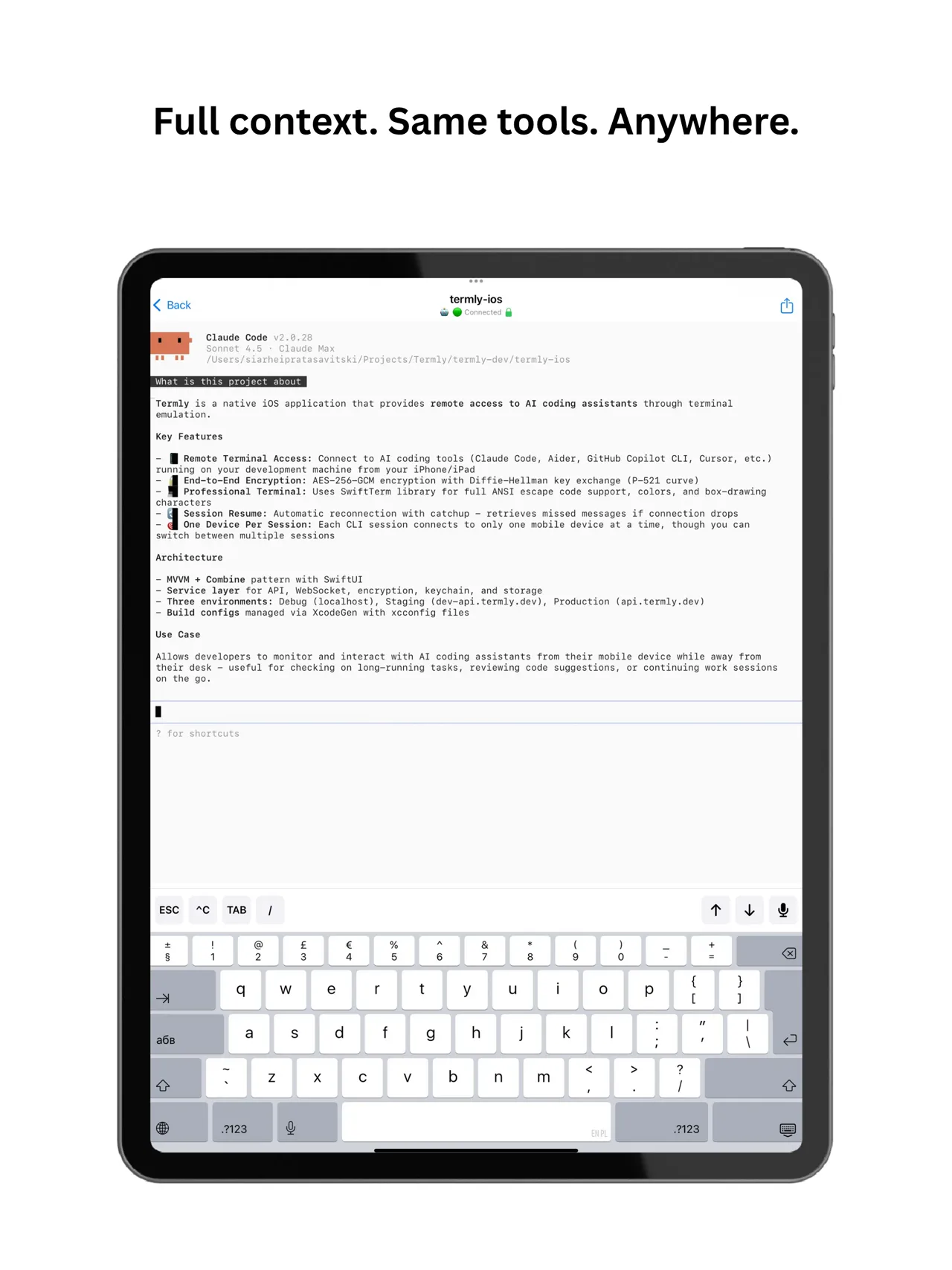
Termly turns your iPad into a full AI coding workstation — access Claude Code, OpenCode, GitHub Copilot, and any terminal AI tool from iPadOS with keyboard, Apple Pencil, and Split View support. Your Mac or PC runs the code; your iPad mirrors the session securely.
Last updated: March 2026
The iPad coding challenge
iPad is perfect for productivity — great screen, portable, long battery life. But AI coding tools like Claude Code, OpenCode, and Copilot are stuck on desktop terminals.
iPad + Termly
Termly bridges your desktop AI coding environment to your iPad. Code runs on your Mac/PC, but you interact with it through iPad's superior display and input methods.
Large Screen Estate
See more code and AI responses on iPad's 11–13" display compared to phones
Keyboard Support
Use Magic Keyboard or any Bluetooth keyboard for fast prompt input
Apple Pencil Integration
Annotate code, sketch UI ideas, and navigate with precision
Split Screen Multitasking
Run Termly alongside Safari, Slack, or design tools in Split View
Turn your iPad into an AI coding station
Setup Your Desktop Environment
On your Mac, Windows, or Linux machine, install Termly CLI:
npm install -g @termly-dev/cliStart Your AI Coding Tool
Launch any AI coding assistant through Termly:
termly start --ai claude-codetermly start --ai opencodetermly startConnect Your iPad
Download Termly on your iPad and scan the QR code:
Download for iPad- Open Termly app on iPad
- Tap "+" or "New Session"
- Scan QR code from your desktop terminal
- Your AI coding session appears on iPad instantly
Optimize Your iPad Setup
Pro tips for the best iPad coding experience:
Real-world iPad coding scenarios
Weekend Side Projects
Work from the couch. iPad + Magic Keyboard feels like a laptop but without the desk commitment.
Airplane Coding
iPad's tray table-friendly size makes it perfect for coding on flights. Continue AI-assisted development at 35,000 feet.
Learning & Tutorials
Follow coding tutorials in Split View while running AI commands in Termly.
Digital Nomad Life
Travel light with just an iPad. Access your full desktop AI coding environment from anywhere in the world.
Claude Code on iPad
Anthropic's Claude Code is one of the most powerful AI coding assistants available — and with Termly, you can use it fully from your iPad. Run termly start --ai claude-code on your desktop and your entire Claude Code session — prompts, responses, file edits, terminal output — streams live to your iPad with zero latency.
Full Claude Code access
Send prompts, review AI-generated code changes, approve or reject edits — all from your iPad screen.
Magic Keyboard shortcuts
Use Cmd+K, tab completion, and all Claude Code keyboard shortcuts via Magic Keyboard or any Bluetooth keyboard.
Voice-to-prompt
Dictate coding instructions to Claude using iPadOS voice input. Hands-free AI coding from your couch or coffee shop.
Split View with docs
Run Termly with Claude Code on one side and documentation, Notion, or GitHub in Split View on the other.
# Start Claude Code on iPad — run this on your desktop:
termly start --ai claude-codeiPad coding FAQ
How to use Claude Code on iPad?
You can use Claude Code on iPad with Termly. Install the Termly CLI on your Mac or PC, run `termly start --ai claude-code` in your project folder, then open the Termly app on your iPad and scan the QR code. Your Claude Code session mirrors to your iPad instantly with full keyboard, voice input, and Split View support.
Do I need an iPad Pro or will iPad Air work?
Termly works on any iPad running iOS 15 or later. iPad Air and iPad Pro both provide excellent experiences. Larger screens (11"+ recommended) make code easier to read.
Can I use iPad in landscape mode?
Yes! Termly supports both portrait and landscape orientations. Landscape with a keyboard attachment feels just like a laptop.
Does my desktop need to stay powered on?
Yes, your Mac/PC needs to be on and running the Termly CLI since code execution happens there. Think of iPad as a wireless terminal to your desktop environment.
What about Android tablets?
Termly is available for Android! Download it from the Google Play Store to use on your Android tablet or phone.
Turn your iPad into an AI coding powerhouse
Lightweight, portable, and powerful — code with AI from anywhere.
100% FREE · NO CREDIT CARD · NO LAPTOP NEEDED